Table of Contents
In the competitive world of live streaming, capturing and retaining viewer attention is paramount. An LED scroller overlay is one of the most effective, dynamic ways to display vital information—like recent subscribers, donation goals, or social handles—without cluttering your main gameplay or camera feed. This guide will walk you through exactly how to set up an LED scroller for live streaming using popular broadcast software like OBS Studio.
What is an LED Scroller in Live Streaming?
An LED scroller in the context of live streaming is a digital graphic overlay that mimics the appearance of a physical LED matrix display. Text scrolls continuously across this banner (usually horizontally), drawing the viewer's eye. Streamers use these digital "ticker tapes" to broadcast secondary information that needs to be visible but shouldn't obscure the primary content.
Why Use LED Scrollers
Utilizing a scrolling text banner offers several distinct advantages for content creators looking to professionalize their broadcasts.
- Space Efficiency: Deliver long messages in a very compact, narrow strip of screen real estate.
- Constant Motion: The human eye is naturally drawn to movement, ensuring your critical calls-to-action are noticed.
- Professional Aesthetic: It mimics professional news broadcasts or sports tickers, elevating the perceived quality of your stream.
- Automated Communication: Answer FAQs (like hardware specs or current game) without having to speak them repeatedly.
Step-by-Step Setup Guide (OBS Studio)
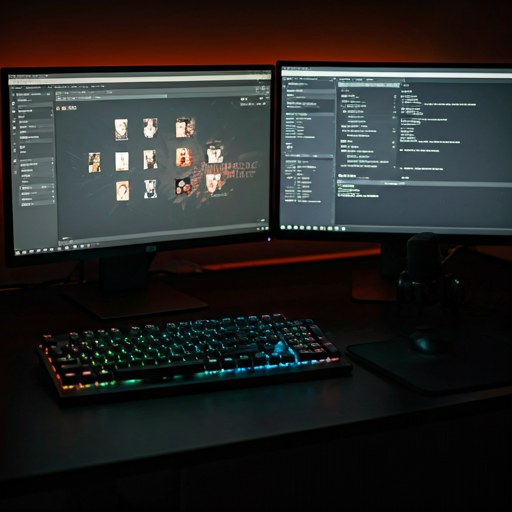
Setting up your first scrolling banner in OBS (Open Broadcaster Software) is straightforward. Follow these steps to get started.
- Create the Text Source: Open OBS, select your desired scene. In the 'Sources' dock, click the '+' icon and choose 'Text (GDI+)'. Name it "LED Scroller".
- Input Your Text: Type the message you want to scroll. Pro tip: add several spaces at the end of your message so it doesn't immediately repeat without a gap.
- Choose an LED Font: Select a font that looks like an LED matrix. 'Dot Matrix', 'VT323', or a pixel font works best for the authentic look.
- Apply the Scroll Filter: Right-click your new text source in the dock and select 'Filters'. Click the '+' under Effect Filters and choose 'Scroll'.
Ideal LED Scroller Settings
To ensure maximum legibility without being distracting, try starting with these baseline settings.
| Setting | Recommended Value | Purpose |
|---|---|---|
| Scroll Speed | 30 - 50 (Horizontal) | Fast enough to be engaging, slow enough to read easily. |
| Font Size | 24pt - 36pt | Legible on mobile devices without dominating screen height. |
| Text Color | Bright Green (#00FF00) or Red | High contrast against dark gameplay backgrounds. |
| Position | Absolute Bottom / Top | Keeps the center frame clear for core stream content. |
Common Mistakes to Avoid
While an LED scroller is a powerful tool, it can hinder your stream if used incorrectly.
- Too Fast: If viewers have to squint to read it, it's too fast.
- Too Cluttered: Don't put an entire paragraph in your scroller. Keep messages concise (e.g., "New Video Out Now! Link in bio").
- Poor Contrast: Dark red text on a dark gameplay background will be invisible. Always use high-contrast, glowing colors or add a semi-transparent black background behind the text source.